

Access Control
Not everyone on your team needs to see everything in BarSight. A server only needs their schedule and shift trades, while a Shift Leader may need to post hours and a General Manager needs nearly everything. Access Groups let you decide exactly which pages each person can use, and what they can do on those pages.
Every employee belongs to one access group. You can edit the groups that come pre-installed, or create your own to match how your business actually runs.
Before You Start
- You need access to the Access Groups page. Account owners always have it.
- To use View as Group (covered below) you need full access to the Access Groups page, not just view access.
- To change the default group for new employees you need access to the Locations page.
Viewing Your Access Groups
- Navigate to Crew → Employee List.
- Open the settings menu in the toolbar and choose Edit Access Groups.
You will see every group in your account with its description and the number of active employees currently in it. Click any group to edit it. Each row also has two quick actions: Copy Group and View as Group.
[SCREENSHOT: Access Groups list showing titles, descriptions, employee counts, and the Copy Group and View as Group icons on each row]
Creating or Editing a Group
- On the Access Groups page, click Add Group to start a new group, or click an existing group to change it.
- Enter a Group Name and an optional Description. Pick something other managers will recognize, like "Shift Leader" or "Kitchen Manager".
- Under Pages, set the level of access for each page using the sliders (explained below).
- If your account has departments, choose whether the group receives notifications for All Departments or only for the Select Departments you tick.
- Click Save & Back.
Using the Sliders
Each page in BarSight is displayed next to a slider that sets what a particular access group can do there. Most pages allow for either No Access or Full Access, but some pages offer a varying degree of access in between.
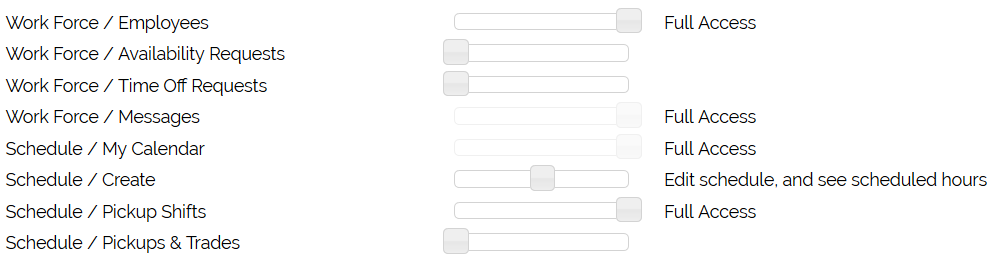 Slide all the way to the left for No Access and all the way to the right for Full Access. If the page allows for Limited Access, the slider can be set in the middle. A description beside the slider explains what the group can and can't do at that setting.
- Some pages are required for everyone, so they are greyed out and cannot be changed.
- A few pages have a minimum level. The slider will not move below it.
Copying a Group
The fastest way to build a new group is to start from one that is close to what you need.
- Click Copy Group on the group's row, or use Copy Group in the toolbar while editing it. You can also choose Save and Duplicate to save your changes first.
- Enter a name for the new group. It is pre-filled as "Copy of ..." followed by the original name.
- Click Save, then open the new group and adjust the sliders.
The copy starts with the same page access levels as the original. Check the description and department notification settings on the new group, since those are set separately.
Deleting a Group
Use Delete Group in the toolbar while editing a group. BarSight will not let you delete a group that still has employees assigned to it. Move those employees to another group first, then try again.
Setting the Default Access Group for New Employees
Whenever you add a new employee, BarSight needs to know which access group to start them in. Your location has a Default Access Group setting that controls this. It is pre-selected when you add an employee from the web or the mobile app, and it is the group every employee receives when you import employees from a CSV file.
- Navigate to Crew → Employee List.
- Open the settings menu in the toolbar and choose Edit Location. You can also go to Settings → Locations and click your location.
- Scroll to the Employee Settings section and find the New Employees box.
- Choose a group from the Default Access Group dropdown. This field is required.
- Click Save in the top toolbar.
[SCREENSHOT: Edit Location page scrolled to Employee Settings, with the New Employees box and the Default Access Group dropdown highlighted]
The same box lets you set the default Sick Days and Vacation Days for new employees.
Tip: Choose your most limited group as the default, such as a basic Employee group. A new hire will then only see what they need, and you can promote managers and shift leaders by hand. Changing the default does not move anyone who is already in the system, it only affects employees you add from that point on.
If you run more than one location, each location has its own default, so check the setting on each one.
Previewing What Others Will See with View as Group
When you set up or change a group, the sliders tell you what is allowed, but it is much easier to confirm by seeing it yourself. View as Group lets you step into the shoes of any access group and browse BarSight exactly as a member of that group would see it. The menus, pages, dashboard widgets and buttons all change to match that group's access. It is a great way to check that a Shift Leader can reach what they need, and that a new hire cannot reach what they shouldn't.
Start Viewing as a Group
- Navigate to Crew → Employee List, open the settings menu, and choose Edit Access Groups.
- Click the View as Group icon on the group's row. If you are already editing the group, click View As in the toolbar instead. Your changes are saved first, so you preview the latest version.
- BarSight shows "Loading Simulation..." and takes you to the dashboard as that group.
[SCREENSHOT: Dashboard while viewing as a group, with the blue group name and wand icon highlighted in the top bar]
While the simulation is running, your name in the top bar is replaced by the name of the group in bold blue with a magic wand icon. That is your reminder that you are in preview mode.
Exit the Preview
- Click the blue group name with the wand icon in the top bar.
- BarSight shows "You are now leaving the simulation..." and returns you to the Access Groups page with your normal access restored.
Good to Know
- Even account owners see only what the group sees. Your usual full access is switched off for the duration of the preview, so what you see is a true picture of that group.
- It is still you. The preview changes what you can see and reach, but you are still signed in as yourself. Anything you save, post, or delete while previewing is real and is recorded under your name. Browse and check, but don't make changes you don't intend to keep.
- It is only for you. Other people are not affected, and the preview does not change anyone's actual access.
- If the group you are previewing doesn't have access to Access Groups, you will not be able to open that page from inside the preview. Just click the group name in the top bar to exit.
Tips and Best Practices
- Start small, then add. Give a group only the pages it needs, then grant more as people ask. It is easier to add access than to explain why you took it away.
- Always test with View as Group after creating or changing a group, before you move employees into it.
- Name groups by job, not by person. "Shift Leader" will still make sense after your staff changes.
- Review the default group after you create new groups, to make sure new hires are not accidentally landing in a powerful one.
- Use Copy Group to make a stricter or looser variation of an existing group instead of starting from scratch.
Troubleshooting
Problem: I can't see "Edit Access Groups" in the settings menu.
Solution: Your own access group does not include the Access Groups page. Ask your account owner to grant it.
Problem: I can see the groups but there is no View as Group button.
Solution: View as Group needs full access to the Access Groups page. Viewing access is not enough.
Problem: I can't delete a group.
Solution: Employees are still assigned to it. Open the group to see who is in it under Employees in Group, move them to another group from their profile, and then delete it.
Problem: An employee says they can't see a page that I expected them to see.
Solution: Use View as Group on their access group and look for the page. If it is missing, open the group and raise the slider for that page.
Problem: New employees keep starting with the wrong access.
Solution: Check the Default Access Group in the Edit Location page, as described above.