

Connecting Google Drive
Connecting Google Drive
The Google Drive integration stores file uploads from your event and booking forms — things like signed contracts or riders — directly in your own Google Drive instead of on BarSight's servers.
Before You Start
- You need a Google account.
- Connecting requires Settings access (access level 27).
What This Integration Does
This is specifically for file upload fields on your Private Events/Booking forms — it's not a general document backup for invoices, purchase orders, or reports. If a booking form has a custom field set to type "File" (for example, a signed rental contract), that file is uploaded to your Drive instead of staying on BarSight's servers, and the local copy is removed once the upload succeeds.
BarSight automatically organizes these uploads into a BarSight System Folder in your Drive, with an Events subfolder, and a folder per event inside that — so each booking's files stay together.
Without this connected, any "File" type field on a booking form is disabled with a note that Google Drive isn't activated.
Connecting Google Drive
- Go to Settings → Integrations.
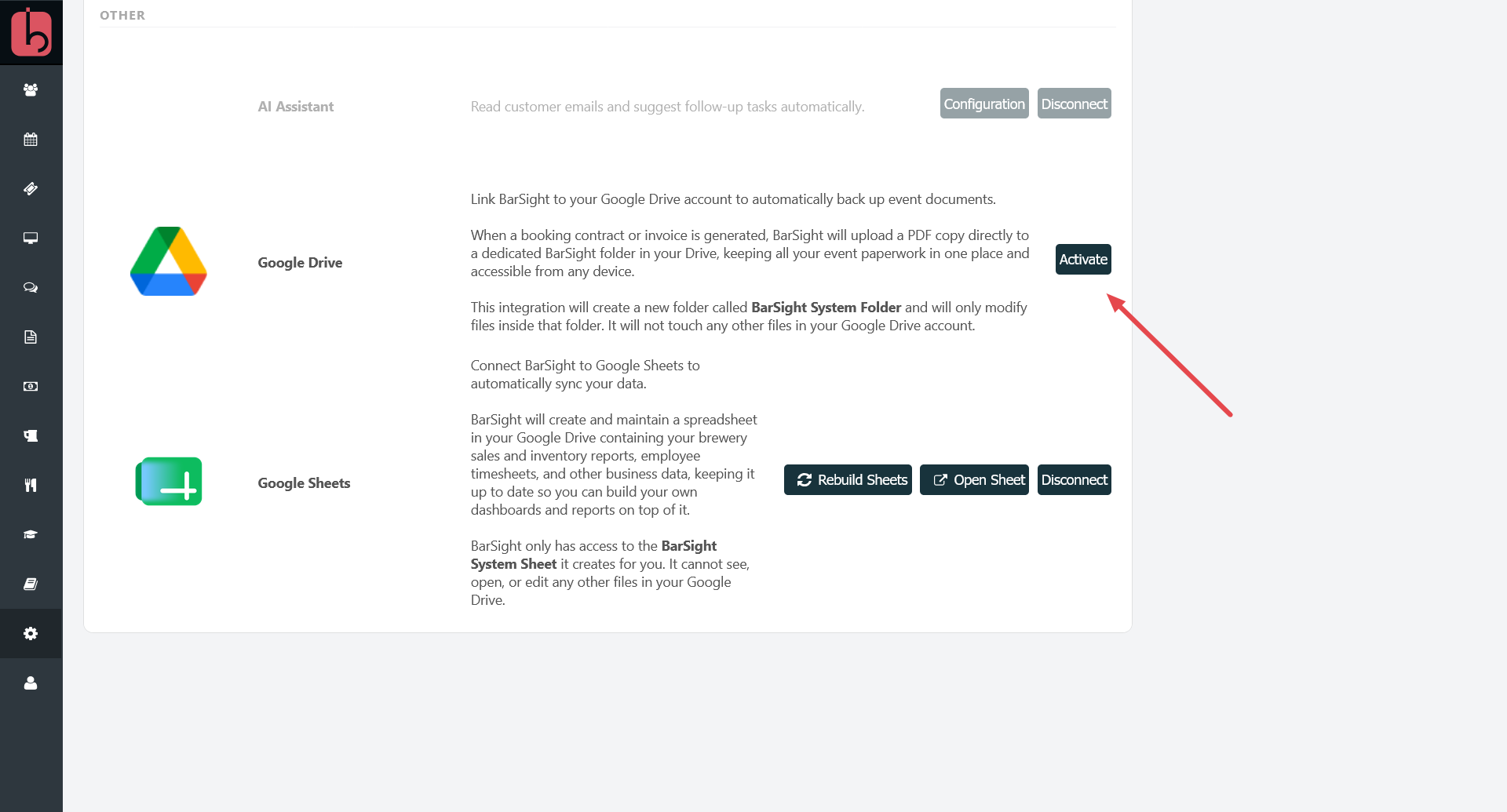
- Find the Google Drive tile and click Activate.
- Log into your Google account and approve access.
- BarSight creates your BarSight System Folder automatically.
Tips and Limitations
- BarSight only requests access to files it creates itself — it can't see or manage the rest of your Drive.
- Uploads happen automatically the moment a file is attached to a booking form and saved — there's no separate sync button to click.
- Disconnecting stops future uploads but doesn't delete anything already sent to your Drive.
- You can check your Google Drive storage usage from within BarSight without leaving the app.
Related Features
See the full list of available integrations on the API Integrations overview.